Missing alt text on images that carry information
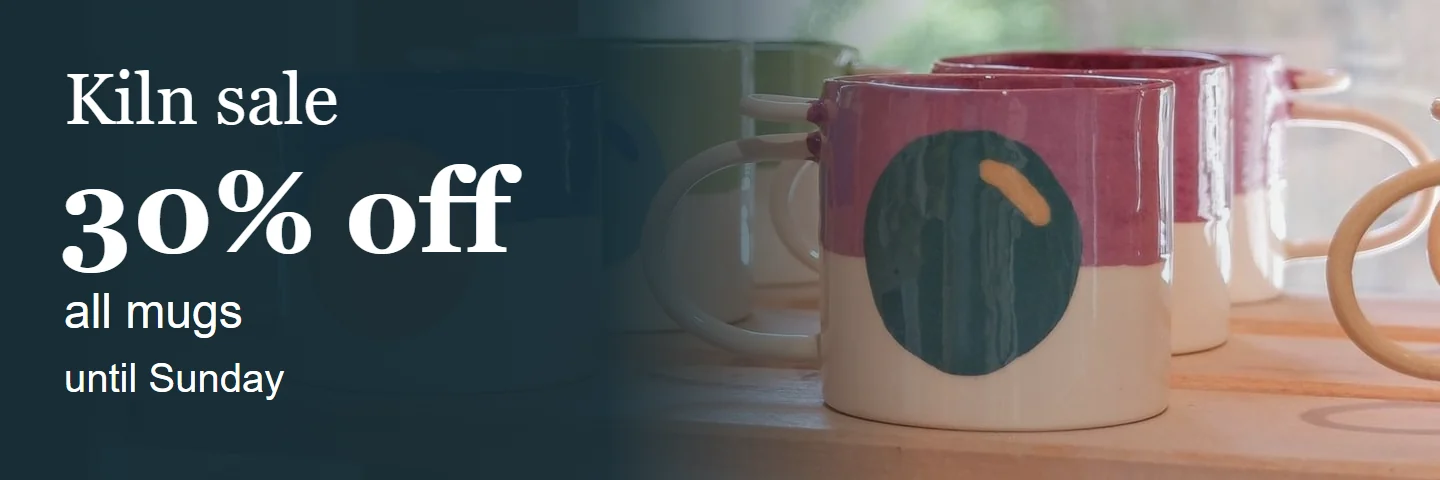
A sale banner has its offer drawn into the picture with no alt, and the care icons under a product are all labelled “image”.
The problem
Screen reader users miss whatever an image tells, such as a sale or a safety warning.
A pottery shop's home page opens with a banner. It shows a row of mugs fresh from the kiln, and across them, in large letters, "Kiln sale: 30% off all mugs until Sunday". Further down, the page for a speckled mug shows three small icons under its name: a dishwasher, a microwave and an oven with a line through it. A screen reader reaches the banner and reads "kiln-sale.jpg, image", or nothing at all. At the icons it reads "image, image, image". The sale, its end date and the warning not to put the mug in the oven never reach the listener.
The banner is one <img> with the offer drawn into its pixels and no alt attribute. A screen reader has no text to read, so it falls back to the file name or skips the image. The care icons do have alt, but the theme fills it with the word "image" for every picture, which tells the listener that something is there and nothing about what it says. In both cases the information exists only as a picture.
People who are blind and use a screen reader hear only what the text alternative says. People with low vision who magnify the page may not be able to read words drawn small inside a picture, and can't change their size or colour. Images also fail to load on slow mobile connections, in some email clients and when people turn them off to save data; the alt text is then all that is shown. Braille display users, and anyone using a reading or translation tool, get only the text.
An automated check such as axe's image-alt reliably flags an <img> with no alt at all. It can't tell whether the alt that is there is any use: it passes alt="image", alt="IMG_2041" and alt="banner", and it can't read the words inside a picture to check they are in the alt. A quick AI fix often describes the picture instead of its message ("A row of blue mugs on a wooden shelf"), which leaves out the 30% and the Sunday deadline. It may also mark every image alt="" to silence the scanner, which hides the information completely. Only someone who knows why the image is on the page can say what its text alternative should be.
Try it
Turn the images off and see what is left.
The panel shows what a screen reader reads. Can you still find the sale, its end date and the care advice?
Speckled mug


A screen reader reads:
- kiln-sale.jpg, image
- Speckled mug, heading
- image, image
- image, image
- image, image
A recreated demo. The broken version is intentionally inaccessible.
The fix
Give each image that tells something a text alternative: in its alt, or as real text beside an image marked alt="".
- 1Every img gets an alt: its message, or empty when the message is already in the text beside it.
- 2Write what the image tells here, not what it is: no file names, “image” or “icon”.
- 3Words in a picture go in its alt, or out of the picture into real text.
<section class="banner"> <img src="/images/kiln-sale.jpg"></section> <h1>Speckled mug</h1><div class="care"> <img src="/icons/dishwasher.png" alt="image"> <img src="/icons/microwave.png" alt="image"> <img src="/icons/no-oven.png" alt="image"></div>The banner has no alt, so the offer it shows has no text equivalent. The icons have an alt, but "image" says nothing about care, so "not oven safe" is lost.
Only the alt attributes change. The banner's alt gives the same words the picture shows, and each icon's alt says what that icon means for this mug. A screen reader now reads "Kiln sale: 30% off all mugs until Sunday, image" and "Dishwasher safe, image", and the same words are shown if the images fail to load. The alt describes the message, not the mugs in the photo, because the message is why the image is there.
Both options give every piece of information a text equivalent and meet 1.1.1. Writing the alt is the smallest change: one attribute, no layout or design work, so it suits banners made in a design tool or a theme you can't restructure. Moving the words into real text costs a template change, but it also meets 1.4.5 Images of Text, works when text is enlarged or translated, and helps sighted people who don't know what the icons mean. Choose it for anything new, and for banners that change every week. You can mix them: alt text on this week's banner, and labelled care icons in the product template.
What to write. Ask why the image is on this page and write that. The same photo of a mug might need "Speckled mug, front view" in a product gallery and alt="" next to a heading that already says "Speckled mug". Don't start with "image of" or "picture of": the screen reader already says "image". Keep it to a sentence or two and end with a full stop so the screen reader pauses.
Missing alt is not the same as empty alt. With no alt, screen readers often read the file name. alt="" tells them to skip the image, which is right only when the image adds nothing that isn't already in the text. Never use alt="" to silence a scanner on an image that carries information.
Images inside links. When an image is the only content of a link, its alt also has to say where the link goes ("Kiln sale: 30% off all mugs"). See the link text guide for the rest.
Background images. An image set with CSS background-image has no alt and is invisible to assistive technology. Anything it says must also be real text on the page. Don't move an informative image into CSS to avoid writing alt.
Charts, maps and diagrams. A short alt can't hold a whole chart. Give a short alt that says what it shows and the main finding, and put the full data in text nearby, such as a table or a figcaption.
Editable content. In a CMS or a store theme, the banner image and its alt are often separate fields, and the alt field is optional or filled with the file name. Make the alt field required for new images and show it next to the image, and stop the theme from falling back to the file name or a word like "image". When the banner changes, its alt has to change with it.
title and aria-label. A title attribute is not a reliable text alternative: it shows only on hover and some screen readers ignore it. On an <img>, use alt. For inline SVG icons, see the guide on SVG icons.
Verify the fix
4 checks, no mouse.
Test with: Screen reader
Record the OS, browser and assistive-technology versions, the build, the date, and the actual result of each step. Repeat whenever a banner, an icon set or the shared image component changes.
Limits
This is a starting pattern, not a guarantee for every application. Paths and class names in the snippets are placeholders. Whether an alt is right depends on the image and its context, and only a person who knows both can judge it, so keep alt text in your publishing review. Test the complete journey with your target assistive technology.
This is a recreated teaching example, not a finding about a named client. The code is a starting pattern: test it in your own product. No completed assistive-technology test is claimed here.
Keep this fixed as your code changes.
Turn guides like this into rules your coding agents and CI follow, then have the result retested with a keyboard and screen readers.