Search topics
Buttons and links named differently from their text
A shop gave each "Add to bag" button an aria-label naming the product and saying "cart", so the name no longer contains the words on the button and voice control can't find it.
aria-label="Add Linen tote to cart" The problem
Voice control users can't press the shop's "Add to bag" buttons by saying what they see, and screen reader users hear other words than the ones on screen.
A homeware shop lists its products in a grid. Each card has a photo, the product's name, its price and a dark "Add to bag" button. A developer noticed that every button had the same name, and gave each one an aria-label that names its product: "Add Linen tote to cart". It reads well in a screen reader's list of buttons. But a voice control user looks at the card, says "click Add to bag", and nothing happens: no button on the page is called that. A screen reader user hears "Add Linen tote to cart, button", while the page and the help text talk about a bag.
An aria-label replaces the button's own text as its accessible name, so the words on the button, "Add to bag", are not part of its name at all. WCAG 2.5.3 Label in Name (Level A) needs the name of a control with a visible text label to contain that text, so people can operate it by saying what they see. The name has to contain the words as shown; capitals and most punctuation don't count. WCAG's Understanding document adds that a best practice is for the name to start with them.
The same failure comes in other forms:
aria-labelledbypointing only at the card's heading, which names the button "Linen tote" and drops "Add to bag";- the visible words wrapped in
aria-hidden="true", with visually hidden text that says something else, such as "Add Linen tote to cart"; - an icon-and-text link that shows "Bag (2)" and has
aria-label="Shopping cart".
A name that holds the words but not at the start, such as "Linen tote, add to bag", passes 2.5.3, though it is not the best practice. Hidden words between the visible ones, as in "Add Linen tote to bag", keep every word but break the phrase. The Understanding document lists that only as a potential future failure, but failure F96 already gives it as an example: the exact words on screen no longer occur in the name as one string. Treat it as a failure.
The aria-label was added to help, and it does help in one place: a screen reader's list of buttons, where every product now has its own entry. Everywhere else, it makes what is heard differ from what is shown.
3 of 10 groups affected
- No vision (affected)
- Low vision (not affected)
- Colour vision (not affected)
- No hearing (not affected)
- Hard of hearing (not affected)
- No speech (not affected)
- Motor (affected)
- Reach, strength (not affected)
- Cognitive (affected)
- Seizures (not affected)
- Limited manipulation Voice control users press a button by saying the words on it. "Click Add to bag" matches nothing, because the name says "cart", so they fall back to numbered overlays or a grid, several commands for every product.
- Without vision Screen reader users hear "Add Linen tote to cart" while the page, its help text and anyone guiding them say "Add to bag", so the words they are given don't lead to the button.
- Limited language, cognitive and learning abilities Sighted people who use a screen reader or text-to-speech to support reading hear "cart" while the screen says "bag", and have to work out that both mean the same button.
axe has a rule for this, label-content-name-mismatch, but it is experimental, so axe runs it only when asked; the audit runs it and reports what it finds as a lead for a person to confirm. It compares an aria-label or aria-labelledby with the visible text, so it finds the Before, the heading-only aria-labelledby and the icon link. It doesn't look at a button named by hidden text in its content, or at an input button such as <input type="submit" value="Go" aria-label="Search">. The audit's own check finds those by comparing the words drawn on screen with the name the browser computes. A quick AI fix for "these buttons all have the same name" can be the Before itself: an aria-label per button, with whatever words the model chooses.
Try it
Say “Click Add to bag” with the simulated voice control, then press Tab to reach each button.
Voice control looks for a button whose name holds the words you said. Under the grid is what a screen reader hears.
Broken Can you fix this?
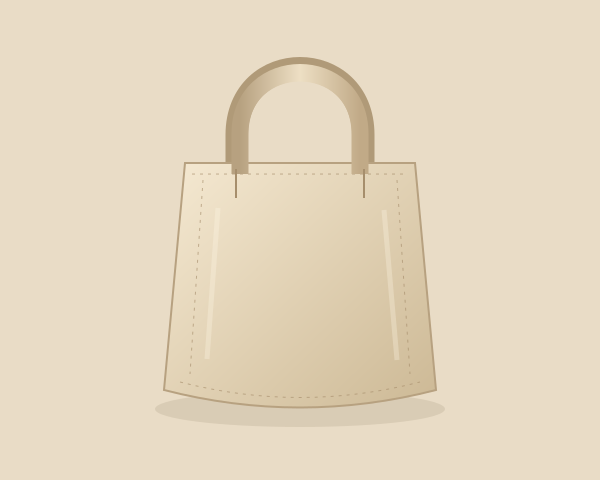
Linen tote
$48
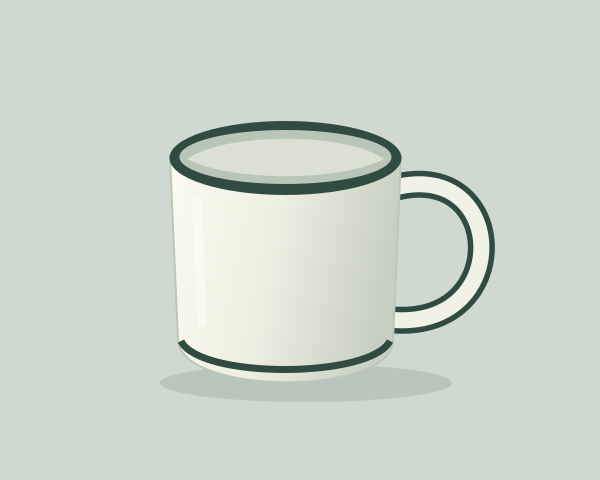
Enamel mug
$18
Screen reader says:
(Tab to a button)
The fix
Start each button's name with its visible words, and put the product after them or in a description.
- 1A button's or link's name contains the words it shows, and starts with them.
- 2Add context after the visible words, or as a description, never in place of them.
- 3Never hide the visible words with aria-hidden and name the control with other words.
<ul class="products"> <li class="card"> <img src="linen-tote.jpg" alt=""> <h3>Linen tote</h3> <p class="price">$48</p> <button type="button" aria-label="Add Linen tote to cart">Add to bag</button> </li> …</ul>The button's own words, with the product as a description
<ul class="products"> <li class="card"> <img src="linen-tote.jpg" alt=""> <h3 id="product-linen-tote">Linen tote</h3> <p class="price">$48</p> <button type="button" aria-describedby="product-linen-tote">Add to bag</button> </li> …</ul>The button shows "Add to bag", but its name is "Add Linen tote to cart". The visible words aren't in the name, so "click Add to bag" reaches nothing.
With the aria-label gone, the button's text is its name again: "Add to bag". The heading becomes its description, which screen readers read after the name and role: "Add to bag, button, Linen tote". "Click Add to bag" now matches every card's button, and voice control numbers them so the person can say which one, as it does for any repeated label.
Both make the name start with what is shown and pass 2.5.3. The description keeps the name exactly the visible words, and suits a grid where the card's heading is right beside the button. But a description isn't shown in a screen reader's list of buttons, where every entry still reads "Add to bag", and some people turn descriptions off. Hidden text puts the product in the name itself, so each button is unique wherever it is listed, at the cost of one hidden span per button. Choose it when the same button repeats many times on a page, and the description when it repeats a few times beside clear headings. Speech software also differs here: Dragon and Windows Voice Access match part of a name, but Apple's Voice Control has been reported to need the whole name, so after the hidden-text fix, "click Add to bag" may not reach the button on a Mac or an iPhone, where the person falls back on its numbers. If many of your users are on Apple devices, weigh that against the shorter list of buttons.
aria-label or aria-describedby. The two do different jobs. aria-label (and aria-labelledby) sets the name: what voice control matches, what a screen reader reads first and shows in its list of buttons. It replaces the words on the button. aria-describedby leaves the name alone and adds a description, read after the name and role; voice control doesn't match on it, and some people turn descriptions off. So the choice follows from what the control shows.
- It shows words: they are the name, so leave out
aria-label. Put extra detail, such as which product or a hint, in a description, or after the words in the name. - It shows only an icon: there are no words to keep, so give it a name with
aria-label. - An
aria-labelon a control that shows words is safe only when it starts with those words, and then hidden text after them does the same job without ARIA.
HTML before ARIA for the extra words. aria-labelledby="add-linen-tote product-linen-tote", listing the button's own id first and then the heading's, gives the same name as the hidden text, "Add to bag Linen tote", and works where a component can't put a span inside the button. Hidden text needs no ids. Both are translated with the page, because both are text on it; an aria-label written in the markup is not always, since some browser translation tools leave it in the original language, which can bring the mismatch back.
Visible words first, and together. Put the extra words after the visible ones, never in front of them or between them. "Linen tote, add to bag" passes but doesn't start with what people see, and "Add Linen tote to bag" splits the phrase they say.
Don't swap a word. "Cart" and "bag", "Buy" and "Order", "Sign in" and "Log in" are the same to the developer and different to speech software. Use the word that is on the screen, in the name and in any help text.
Icons and symbols. A button that shows only an icon has no visible words, so 2.5.3 doesn't apply; it needs a name in words, as icon-only buttons with no accessible name shows. A symbol beside words, such as an arrow after "Next", isn't part of the label, so "Next" is enough.
Form fields. The same criterion covers field labels: an aria-label that differs from the label printed above a field, covered in form fields with missing or mismatched labels.
Fixing this with an AI coding assistant? Get this guide as Markdown, or get every guide in your coding agent.
Verify the fix
4 checks, no mouse.
Test with: Speech input, Screen reader, Keyboard
Record the OS, browser and assistive-technology versions, the build, the date, and the actual result of each step. Repeat after the shared button or product card component changes.
Limits
This is a starting pattern, not a guarantee for every application. Speech software differs in how it matches what is said, so test with the voice control your users have. Buttons that third-party widgets or content editors add need the same check. Whether a name that starts with the visible words also says enough about its product is a separate question, covered for links in empty image links and vague "Read more" links. Test the complete journey with your target assistive technology.
This is a recreated teaching example, not a finding about a named client. The code is a starting pattern: test it in your own product. No completed assistive-technology test is claimed here.
Keep this fixed as your code changes.
Turn guides like this into rules your coding agents and CI follow, then have the result retested with a keyboard and screen readers.